

# Unibet.fr HUD
Hand2Note for Unibet.fr brings a powerful, customizable HUD for live play and a full set of tools for post-session analysis. It helps you review your own game, study opponents, and analyze field tendencies — even when players change nicknames often.
Following recent changes in the Relax Gaming network, Unibet.fr now allows HUD use in its player pool. This makes the full Hand2Note feature set available both during play and away from the tables.
In this guide, you'll learn:
- how to set up Hand2Note for Unibet.fr;
- which features you can use while playing;
- how to start working with Reports and Statistics.
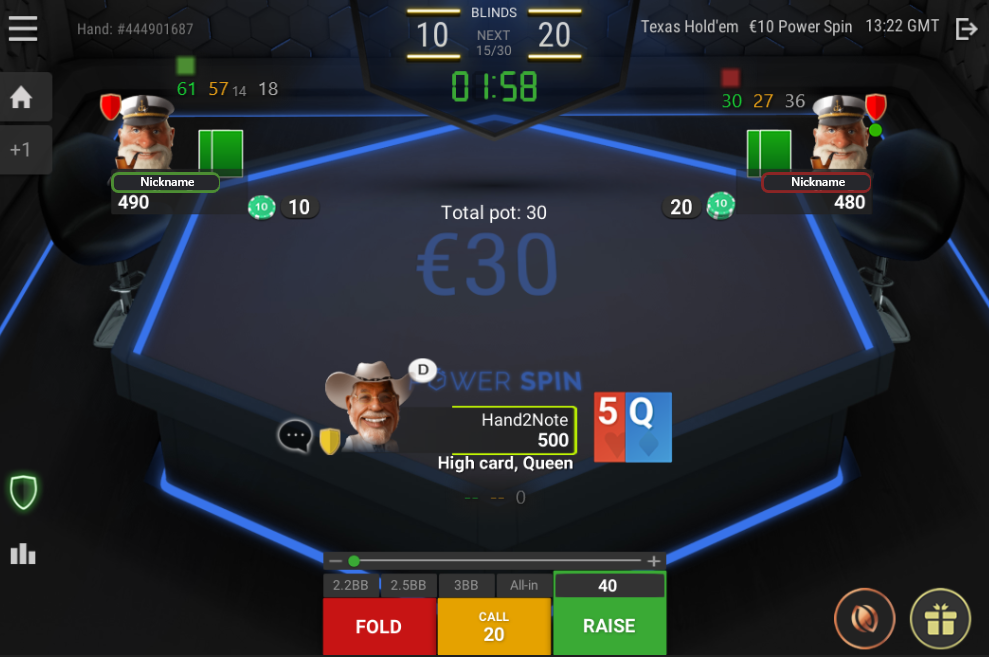
Table of Contents:
Hand2Note Features on Unibet.fr
# Hand2Note Features on Unibet.fr
The French player pool on Unibet.fr does not restrict HUD functionality, so the full Hand2Note toolkit works there — during live play and for post-session analysis.
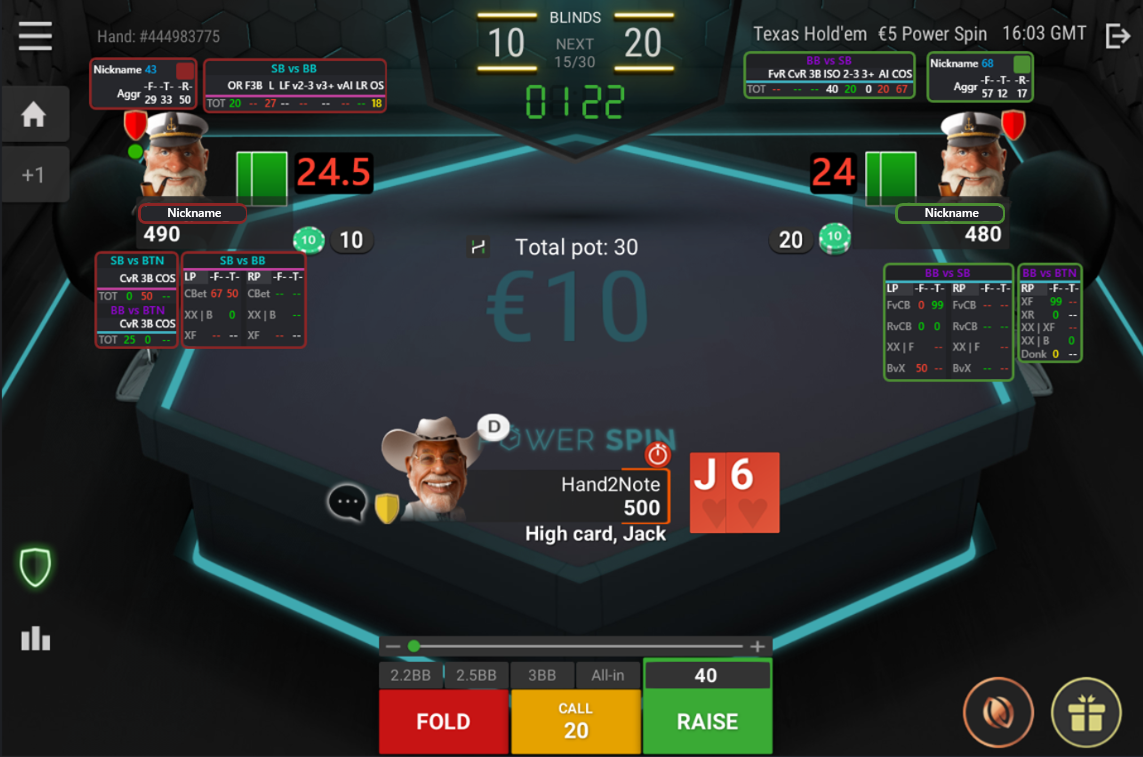
The setup can stay simple with key HUD stats, or use a more advanced setup with dynamic and positional HUDs, popups, notes, visual diagrams, badges, and other tools for opponent analysis.
# Step-by-Step Hand2Note Setup for Unibet.fr
The setup takes only a few steps: install Hand2Note, turn on local hand history saving in the Unibet.fr client, and add the correct hand history folder to Auto Import.
# Step 1. Install Hand2Note
Download and install the latest version of Hand2Note from the official website: Hand2Note.
Launch Hand2Note.
# Step 2. Set Up Unibet.fr
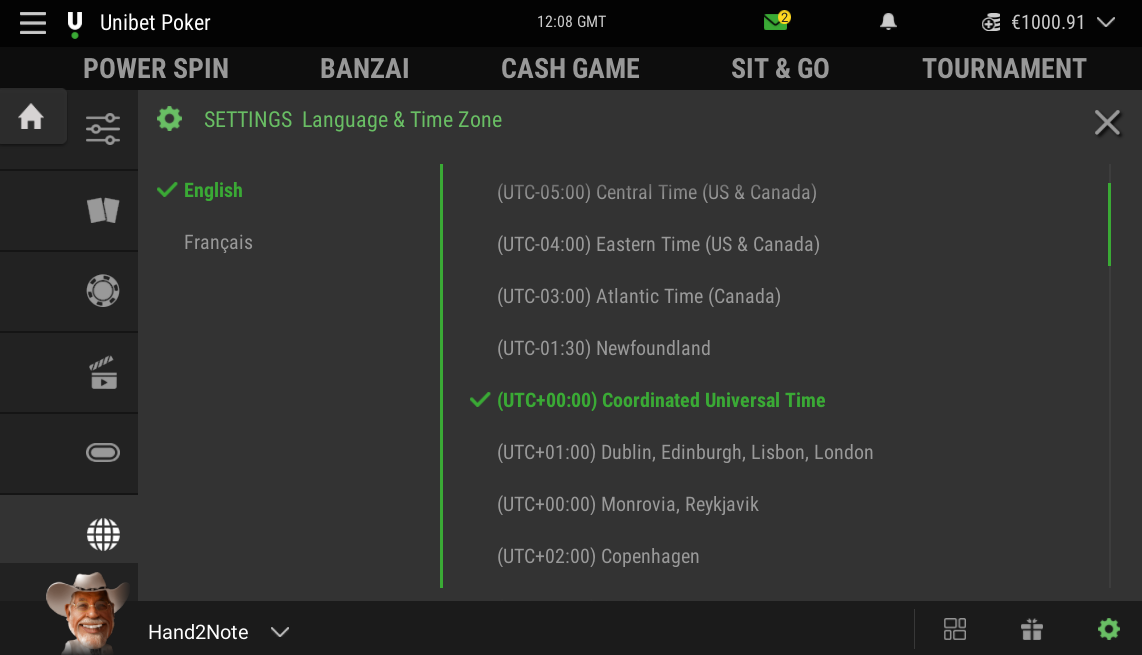
Switch the Unibet.fr client to English.
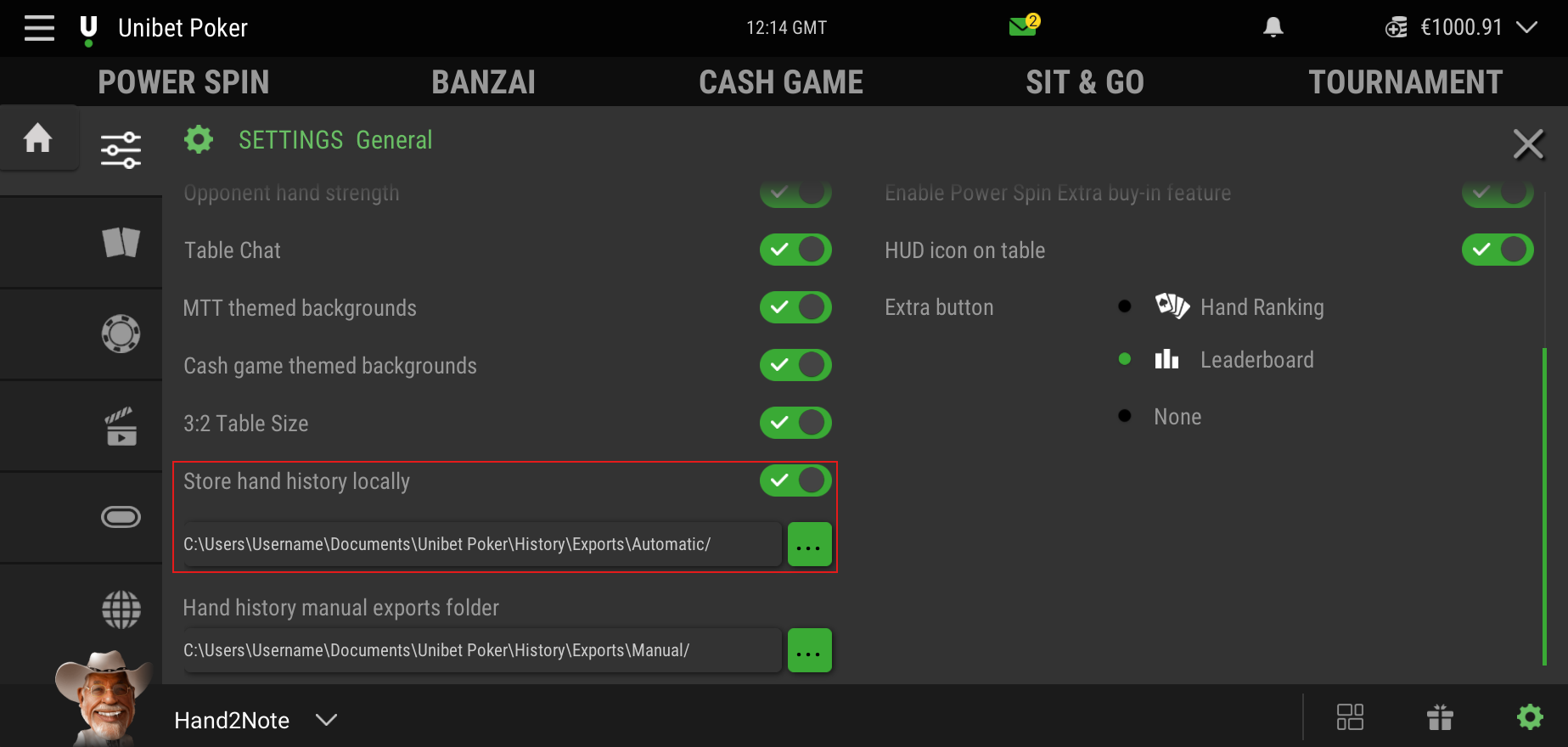
Then enable Store hand history locally.
# Step 3. Set Up Hand2Note
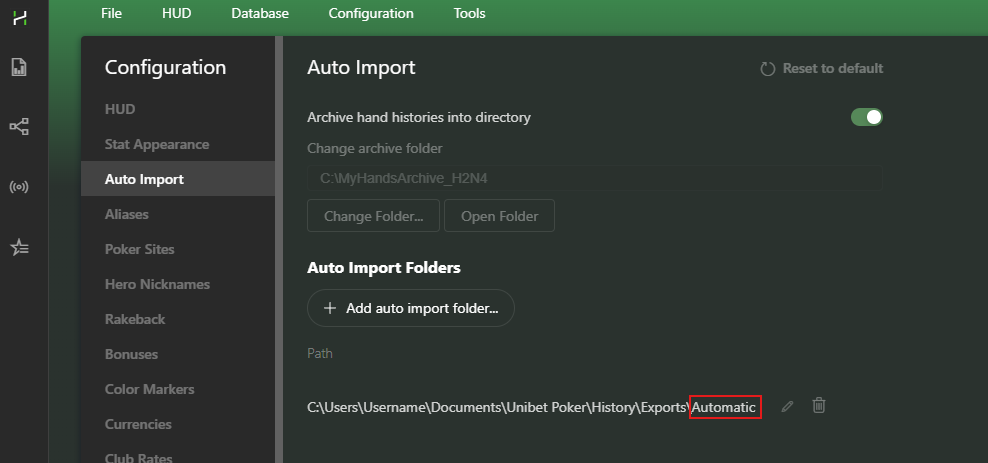
Open Auto Import settings in Hand2Note: Configuration → Auto Import
Click Add auto import folder... and add this folder: C:UsersUsernameDocumentsUnibet PokerHistoryExportsAutomatic
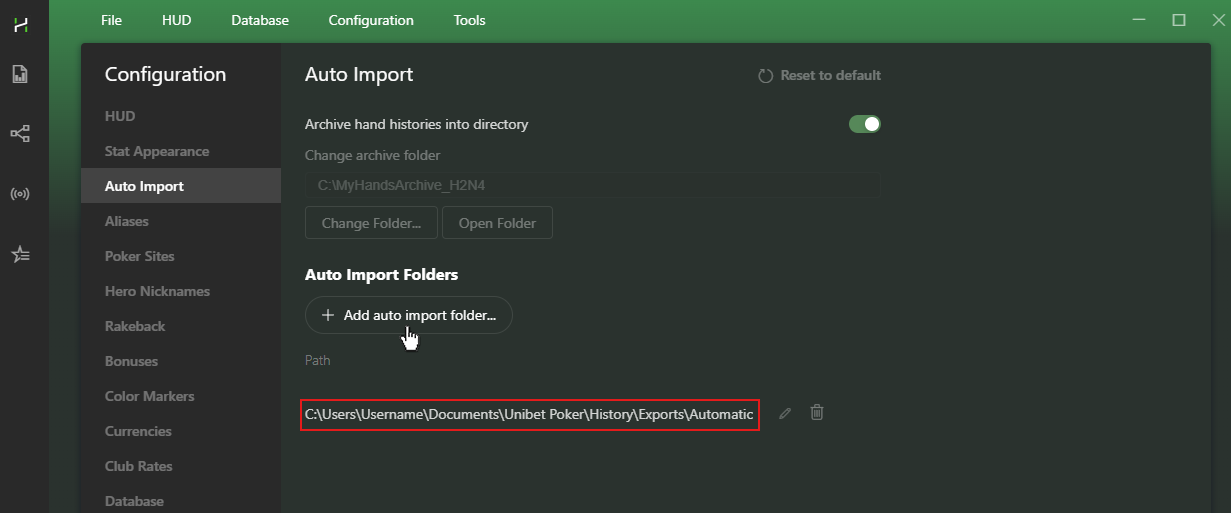
After that, Hand2Note imports hands during the session and displays the HUD at the tables.
# How to Start Using Hand2Note
Hand2Note saves every imported hand in your database. After the session, you can review your hands, check results, find leaks, and study how the field plays.
# Review Played Hands in Reports
Open Reports and choose the report that matches your game format.
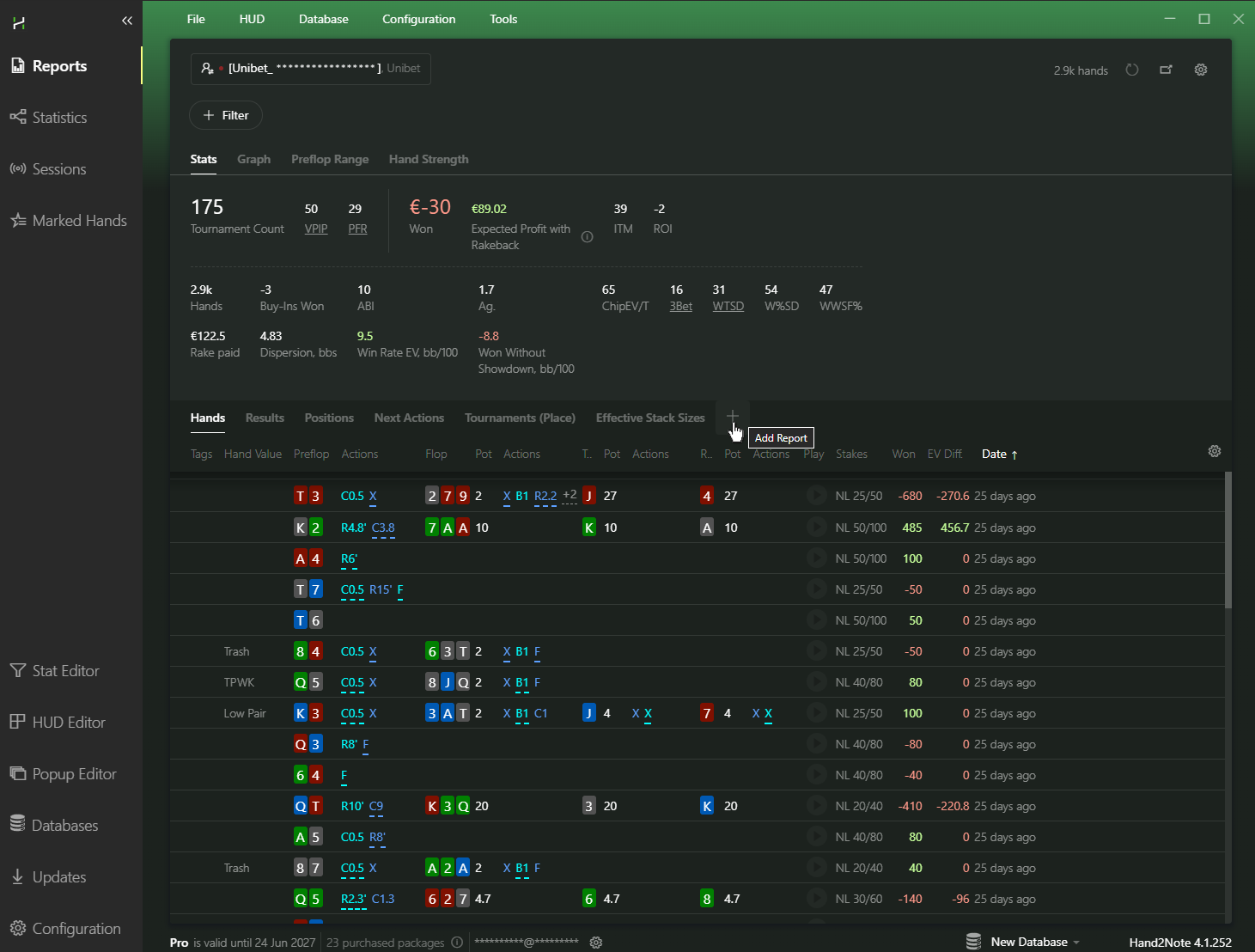
For Power Spin, start with Spin&Go Multiplier. This report groups results by multiplier and helps you compare different prize pools.
For other formats, choose the matching report from the Hand2Note report library.
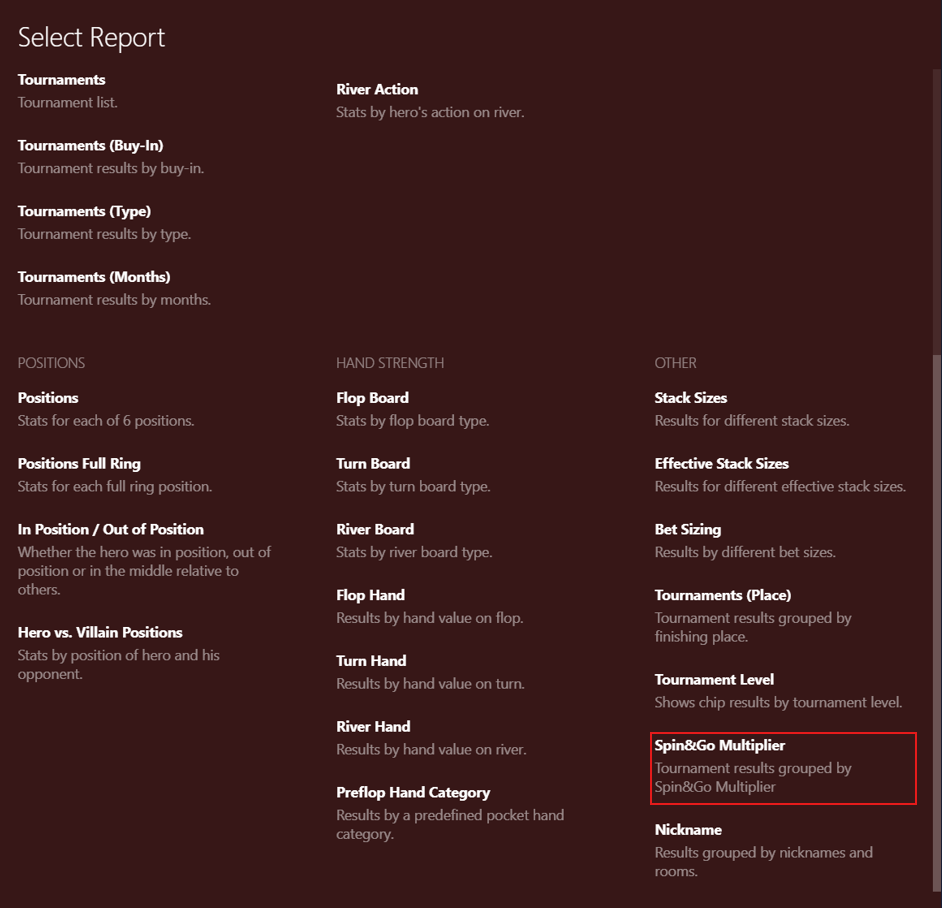
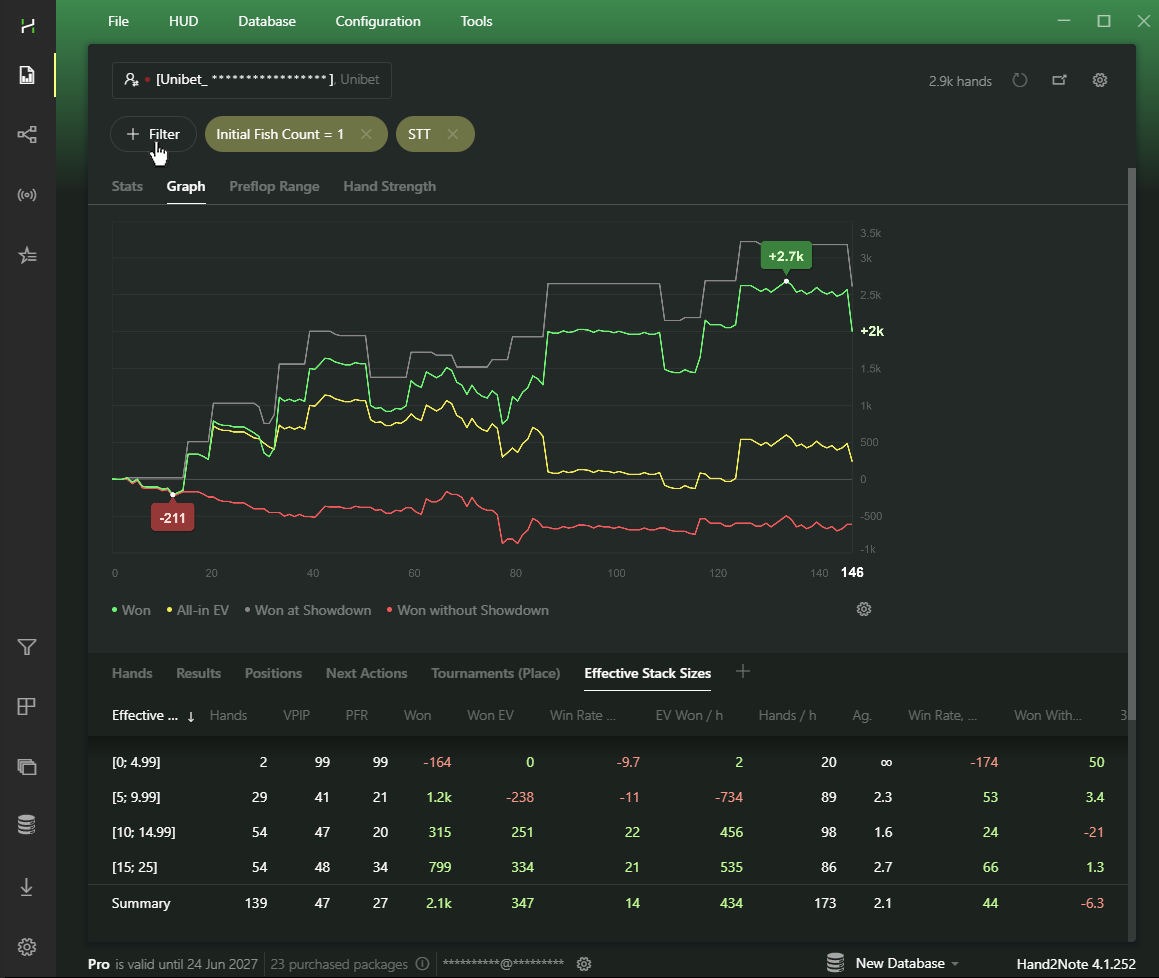
For deeper tournament analysis, add Tournaments (Place) to review your finishing places across tournaments with different prize pools.
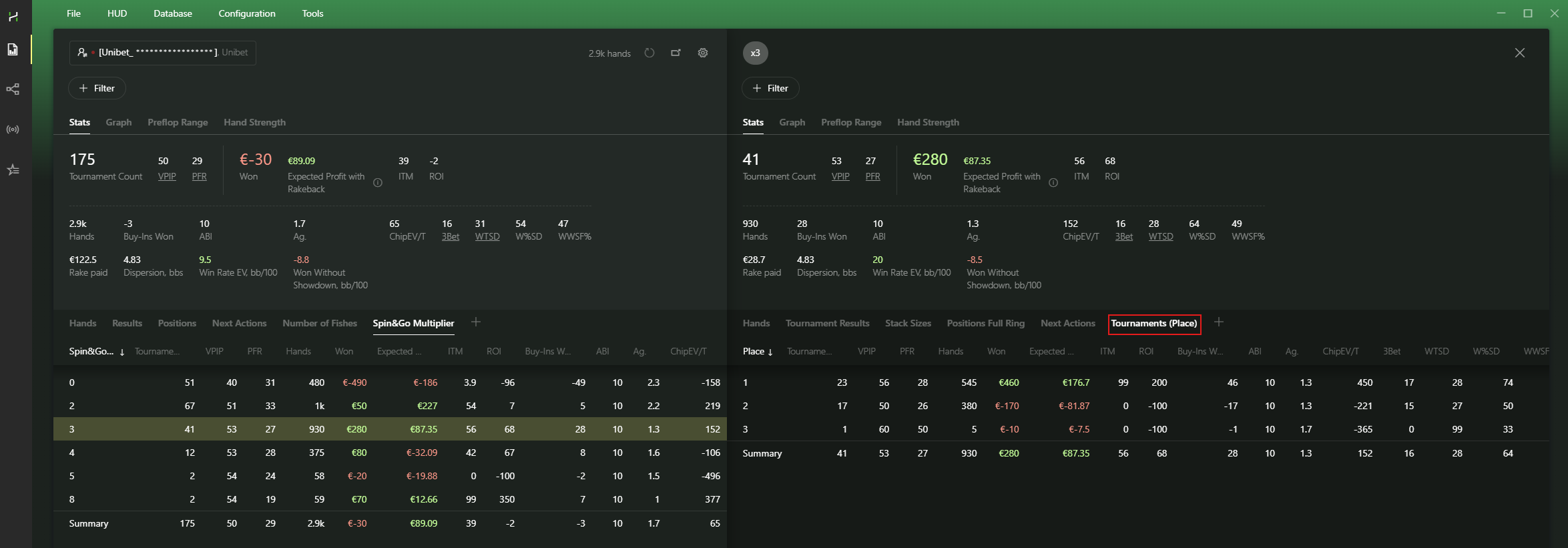
You can also add filters to Reports and focus on specific spots: player types, the number of recreational players at the table, stack sizes, or other game conditions.
# Study Field Tendencies
On Unibet.fr, players may use different nicknames and change them over time. This makes large samples on a single opponent harder to collect.
That is why field analysis matters. Instead of relying only on one nickname, Hand2Note lets you study groups of players with similar traits.
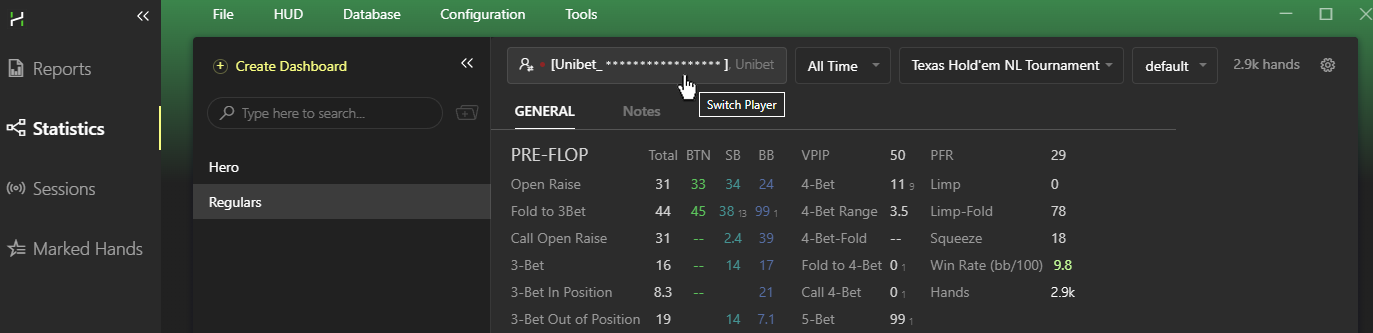
Open Statistics, click a player nickname, and go to the Multiple Players tab.
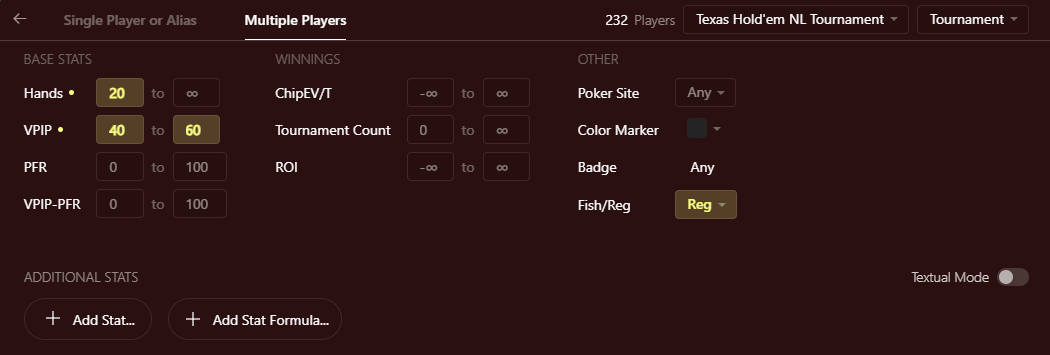
The Multiple Players tab filters players by the parameters that matter for your study.
For example, study recreational players, regulars, or players with specific stat ranges.
After you choose a group, Hand2Note shows how these players act in different spots.
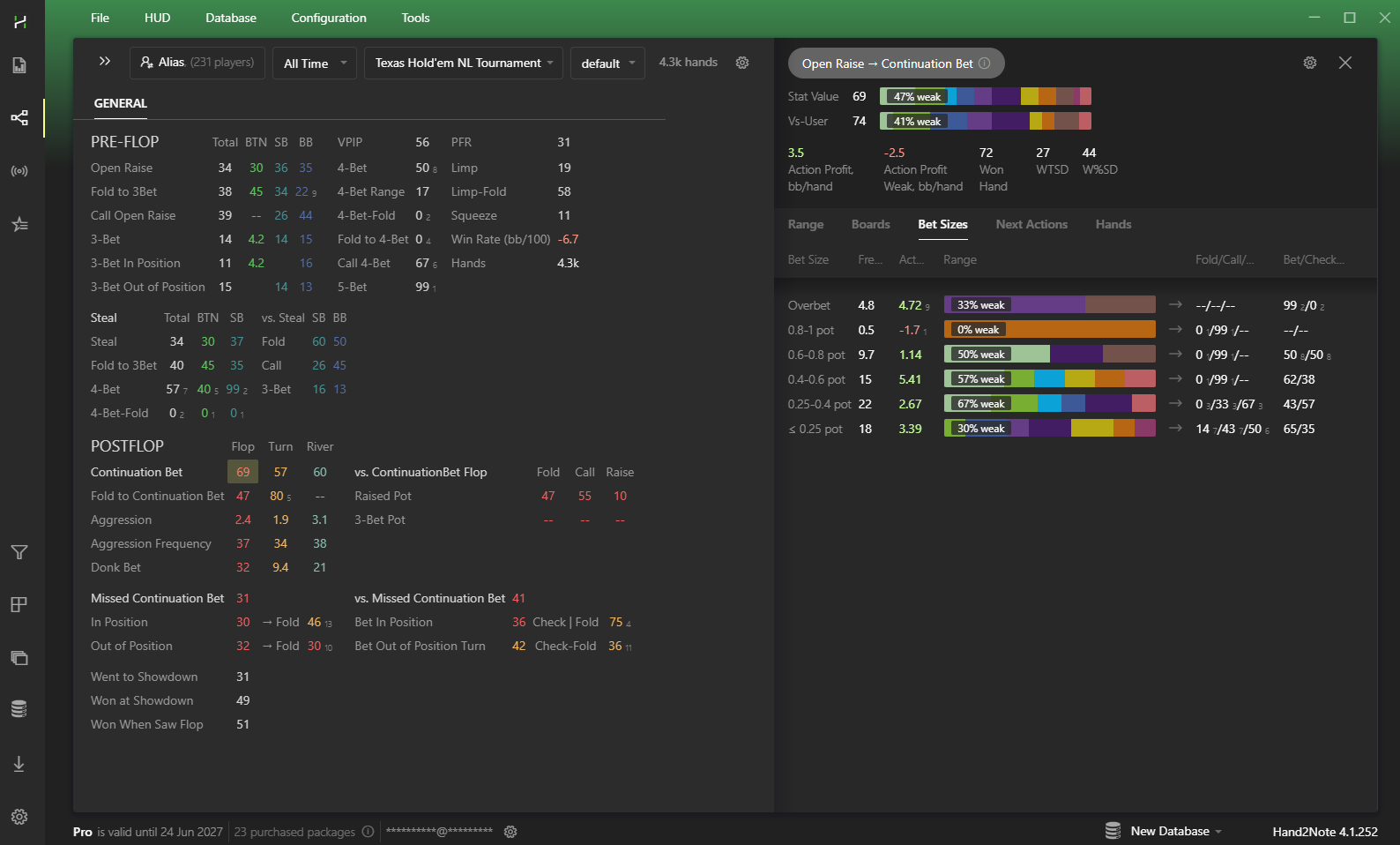
This gives a clearer view of the player pool when individual samples stay small.
# Frequently Asked Questions
# Why don’t I see my nickname?
Unibet.fr lets players use several nicknames and change them over time.
For this reason, Hand2Note uses a unique player identifier called Hero ID. Hero ID combines your played hands into one report, no matter which nickname you used in the client.
# Can I import old hands?
Yes. Request your hand history in the Unibet client and import it into Hand2Note.
Choose the game type, for example Power Spin, open the History tab, select the date range, and click Request File.
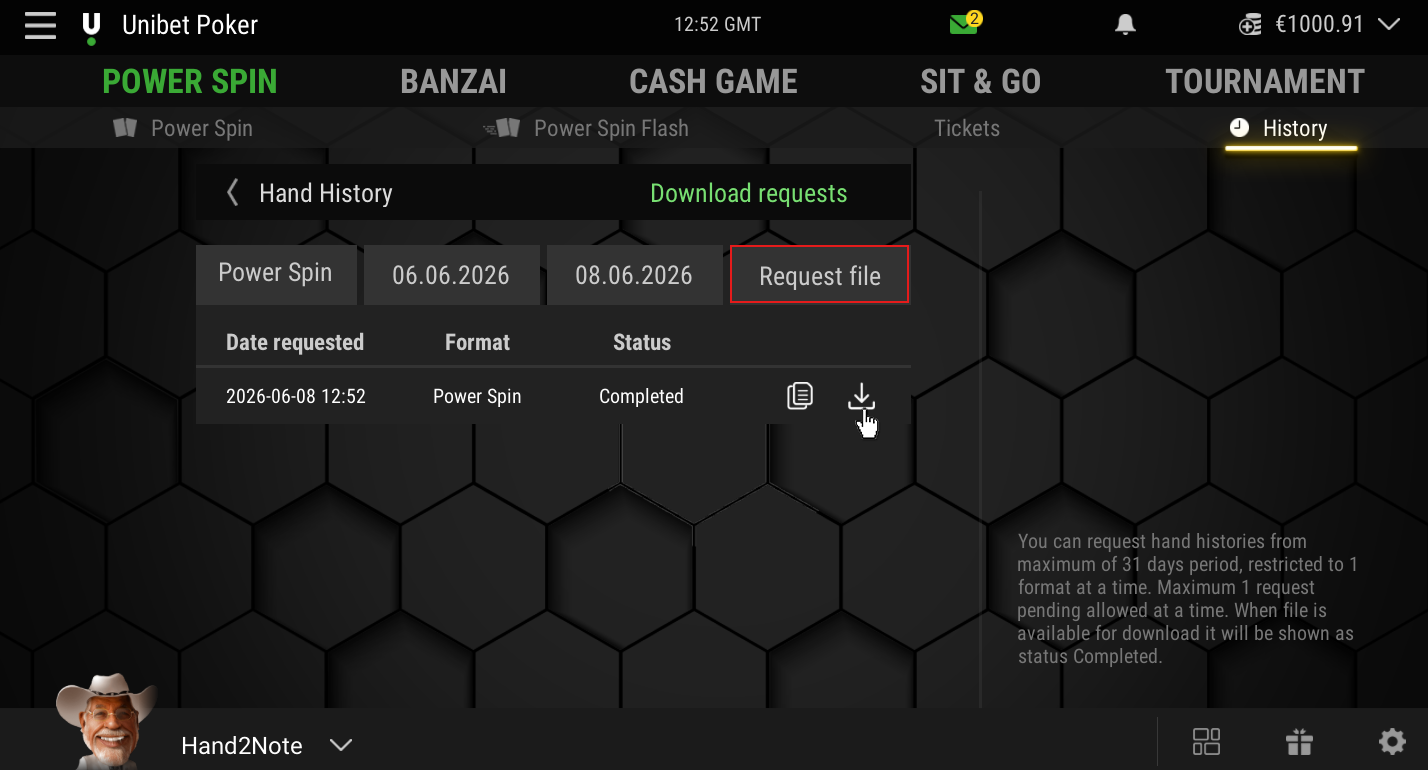
After the client prepares the archive, it places the hands in the Manual Exports folder.
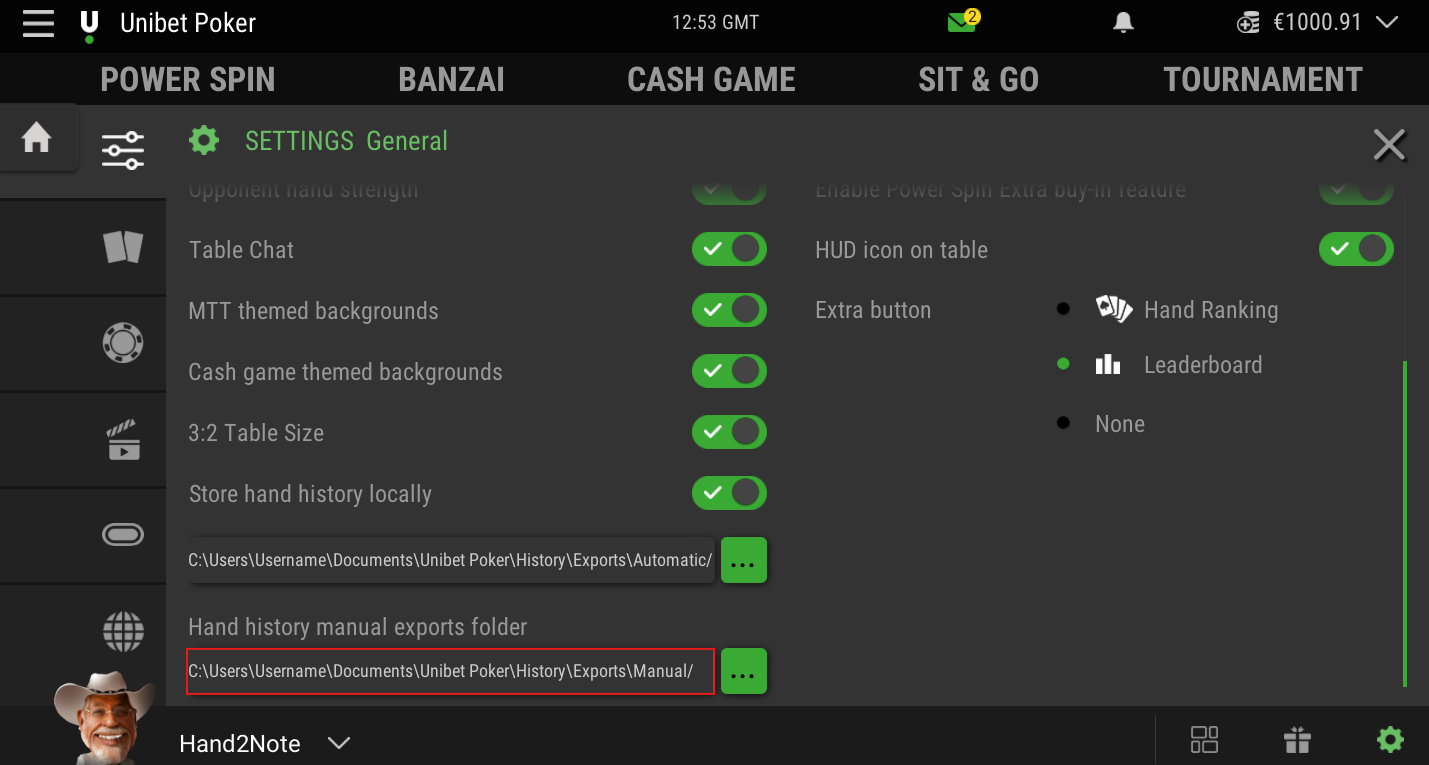
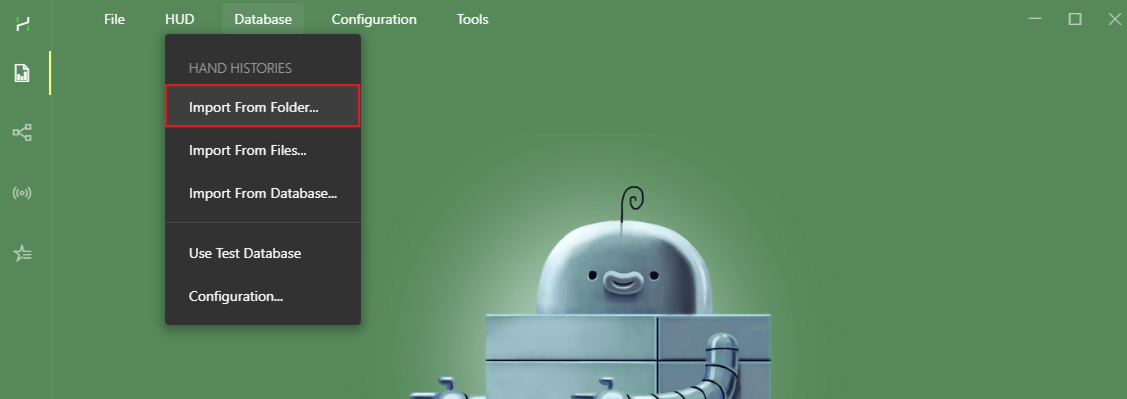
Unzip the downloaded archive and import the hands through: Import → Import from Folder.
# Does the HUD work in the global Unibet client?
Currently, Hand2Note supports the French client only.
We monitor rule changes and will add support for other pools if their rules allow HUD usage in the future.
# Troubleshooting
# The HUD does not update while you play
Check the Auto Import settings in Hand2Note. Make sure Auto Import contains the Automatic folder, not the Manual folder.
# The HUD does not appear
Make sure the Unibet client runs in English.
Then open Updates in Hand2Note and install the latest updates for: Hand2Note, HUD Host, Unibet.
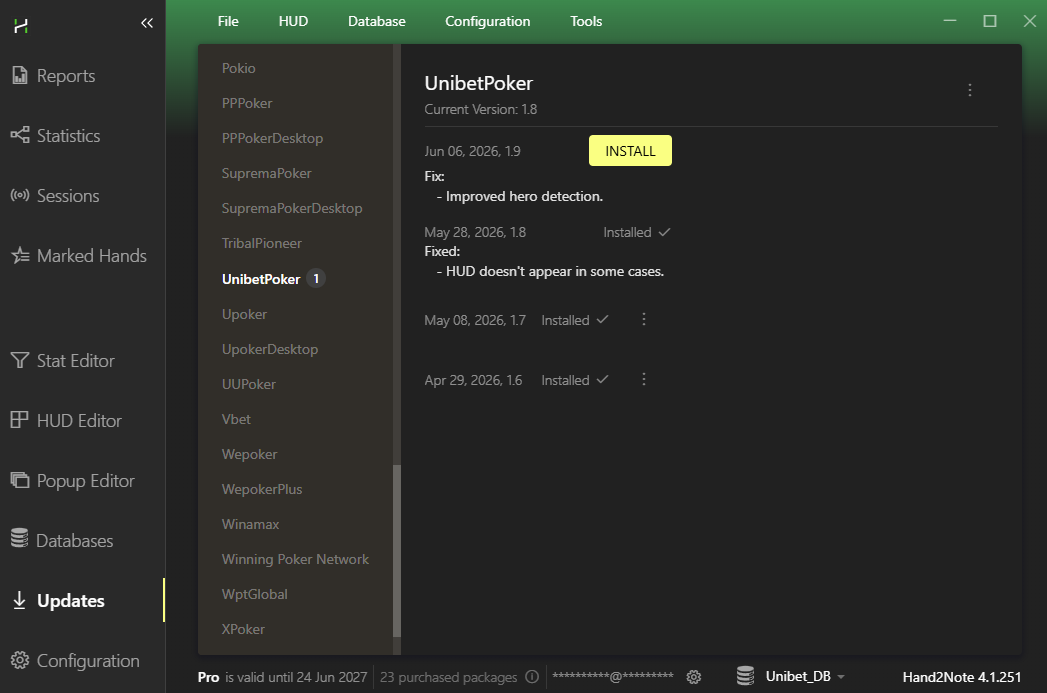
After installing the updates, restart Hand2Note and the poker room client.


